Back to Gallery


This tutorial will guide you through the process of taking your finished work on the computer and turning it into something you can watch on a stand alone DVD player.

The program I will be using in this tutorial is called VSO ConvertXtoDVD. I HIGHLY recommend purchasing the commercial version of this software as it will save you days of agony. If you don't currently own ConvertXDVD, and you are not able to come up with the $49.99 to purchase the full version, you can download the trial version HERE

Please be aware that this version of the software will leave a watermark on your work, and you don't want that now do you?

Alternately you can follow one of the numerous tutorials written by other people on the subject. divx-digest has a good one. Also note, that although this method will give you more control over the final output of the DVD, it also requires WAY more time on your end.

This tutorial assumes that you have an appropriately sized (720x480 is what I use) uncompressed .avi or .mov file of your work ready to be burned to a dvd. Also keep in mind that the frame rate for NTSC DVD (what we use here in the US) is 29.97 frames per second. If your video is not 29.97fps, ConvertXtoDVD will do it's best to convert it to 29.97fps and still keep the same timing integral. However, should you notice a discrepency in the timing of your movie on the DVD, and what you're seeing on your computer, this may be the culprit.

Blah blah blah, here's the tutorial..

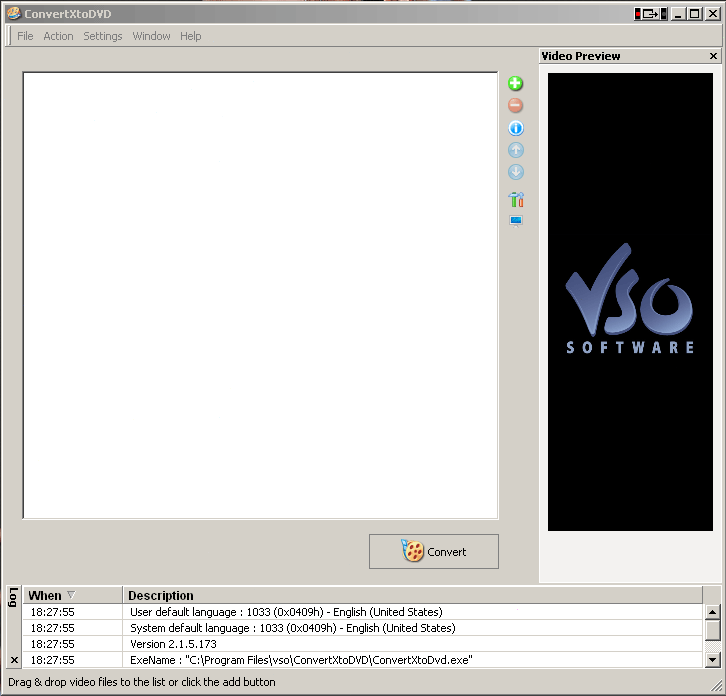
1. Step one, Fire up ConvertXtoDVD... it should look something like this...

01

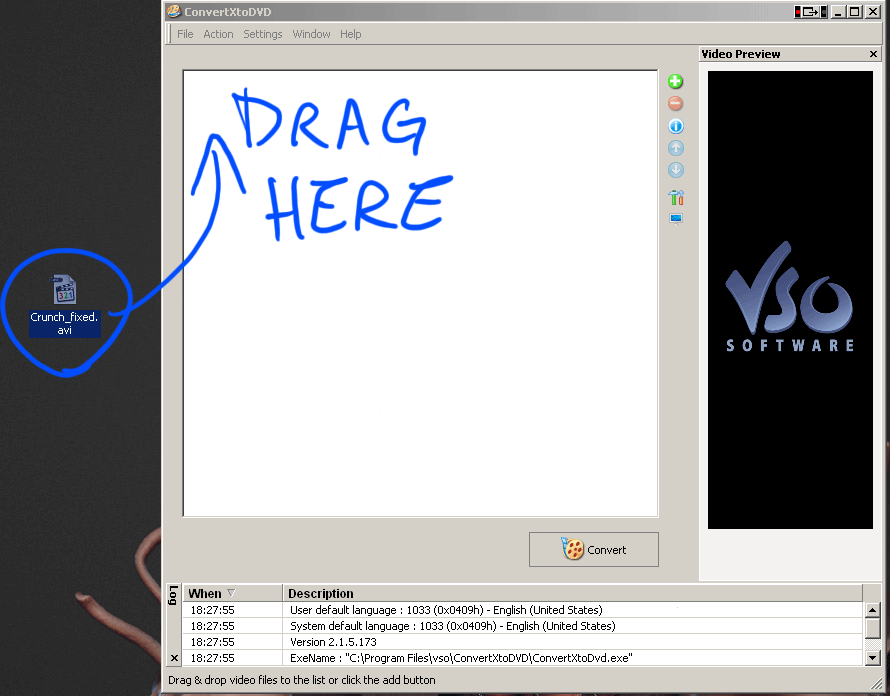
2. Now Drag the previously mentioned uncompressed .avi or .mov file into the big white square


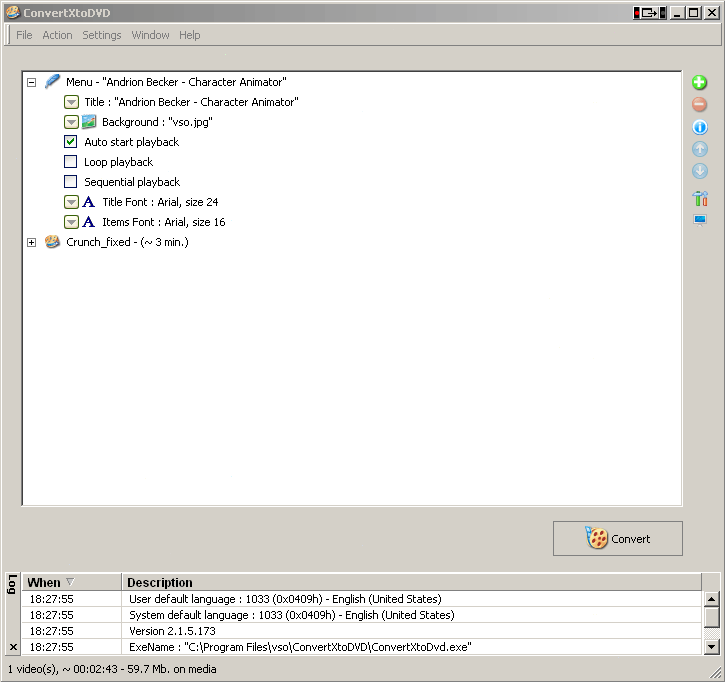
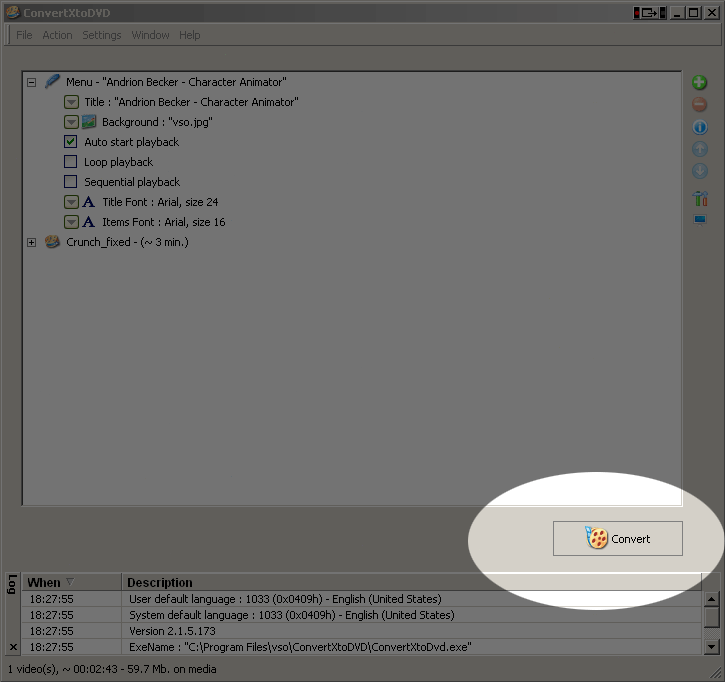
3. Now click the plus sign next to Menu, you should get some more options...


4. Change the title to something appropriate by double clicking where it says "Title" and then typing in the box that pops up.

5. You'll probably want to put your own custom artwork in the background of the menu, so by the same token, double click where it says "Background" and find an appropriate 720x480 image file. Keep in mind that there will be text over the top of it, so something that's not too distracting usually works best.

6. The next three checkboxes are optional, but I'll explain them anyway

-Auto start playback: I usually check this option. Remember that when you send your work someplace for review, you're probably not the only one doing so. And you want to make it as easy as possible for the people reviewing. They just want to see your work, not fumble with some DVD menu. Auto start playback just makes things easier for everybody. However some people like to ave the menu, so it's up to you.

-Loop playback: this just loops your movie once it's over, I usually leave this unchecked, but it's your call

-Sequential playback: This is for if you have multiple files on the DVD that you want to play in a sequence, it basically works like "Play all"

7. Now click the big Convert button in the bottom right corner and Wait
8. When the DVD is done converting it will prompt you for a blank DVD to write to.

9. Insert DVD to write to and hit "Burn" That's it!

Hopefully you found this tutorial beneficial. However, I don't claim to be an expert on the subject, so if there's anything in
this tutorial that doesn't sit well with you, feel free to drop me a line at andrionbecker@gmail.com


Back to Gallery